RPA Developer Document
1 Introduction
This document provides documentation and examples of QAutomate RPA project creation, modification and deployment.
1.1 Prerequisites
Python
More information at: https://www.python.org/
QAutoLibrary
QAutoLibrary is required to run and deploy a robot.
More information at: QAutoLibrary Documentation
1.2 Tools
Recommended tools for creating QAutomate RPA projects are:
QAutoFlow
QAutoflow is a tool for designing automated tests and robotic process automation (RPA) in Web based platforms with browser extension.
More information at: QAutoFlow Documentation
QAutoRobot Visual Studio Code extension
QAutoRobot VSCode extension is a development tool for QAutomate RPA projects.
More information at: <LINK>
2. Create RPA project
QAutoRobot RPA project creation can be started with either creating a RPA process with QAutoFlow, or creating an empty RPA project with QAutoRobot VSCode extension.
The example, in 2.2 Create RPA process with GUI (QAutoFlow), guides through the creation of a simple login process on webpage https://the-internet.herokuapp.com/.
2.1 QAutomate RPA project structure
QAutomate RPA project structure consists of:
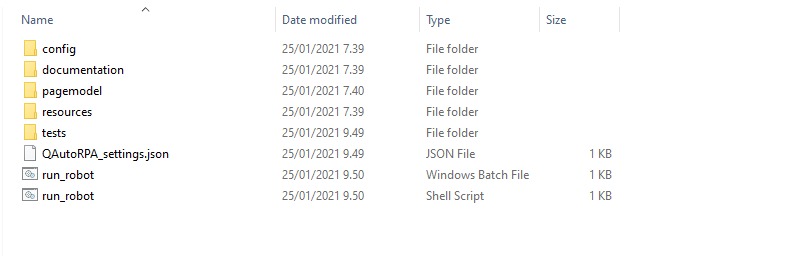
config - contains project settings files
documentation - contains project documentation
pagemodel - contains Python modules
resources - contains Robot setup and teardown configurations, and other Robot files
tests - contains main Robot test files
QAutoRPA_settings.json
RPA process made with QAutoFlow can be transformed into QAutomate RPA project, generating the required files. Alternatively, QAutomate RPA project structure can be created with QAutoRobot VSCode extension.
2.2 Create RPA process with GUI (QAutoFlow)
Start QAutoFlow.
Create an RPA project:
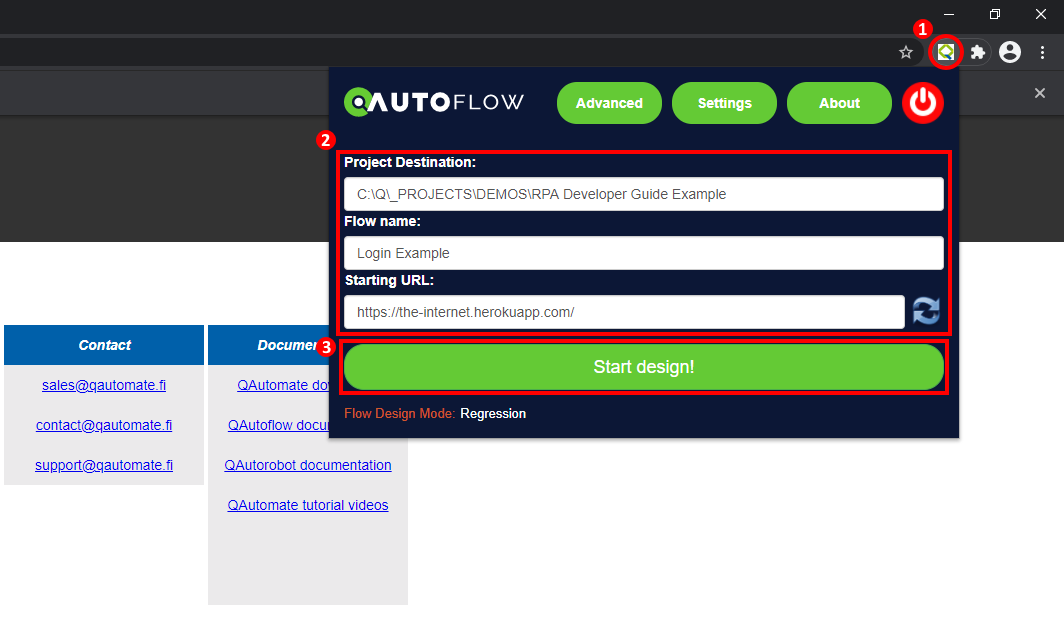
Open QAutoFlow window from an icon on upper-right corner.
Enter project destination, flow name and starting URL.
Click “Start design!” button.
Verify main page title text:
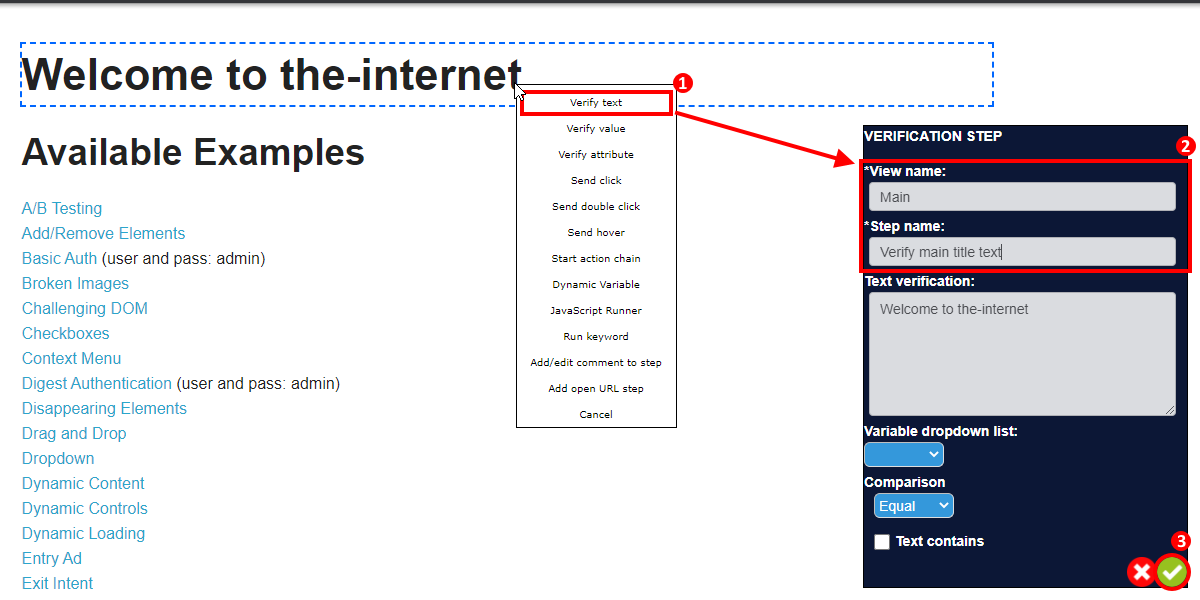
Right-click on the title text and select “Verify text”.
Step dialog will appear. Enter View name and Step name.
Confirm step by clicking the green check mark.
Continue to Form Authentication page:
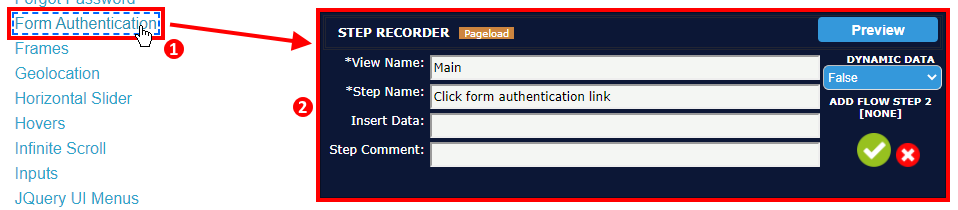
Click “Form Authentication” link.
Provide and confirm the step information.
Verify login page title text. (In similiar way as verifying the main page title text.)
Enter login credentials and login:
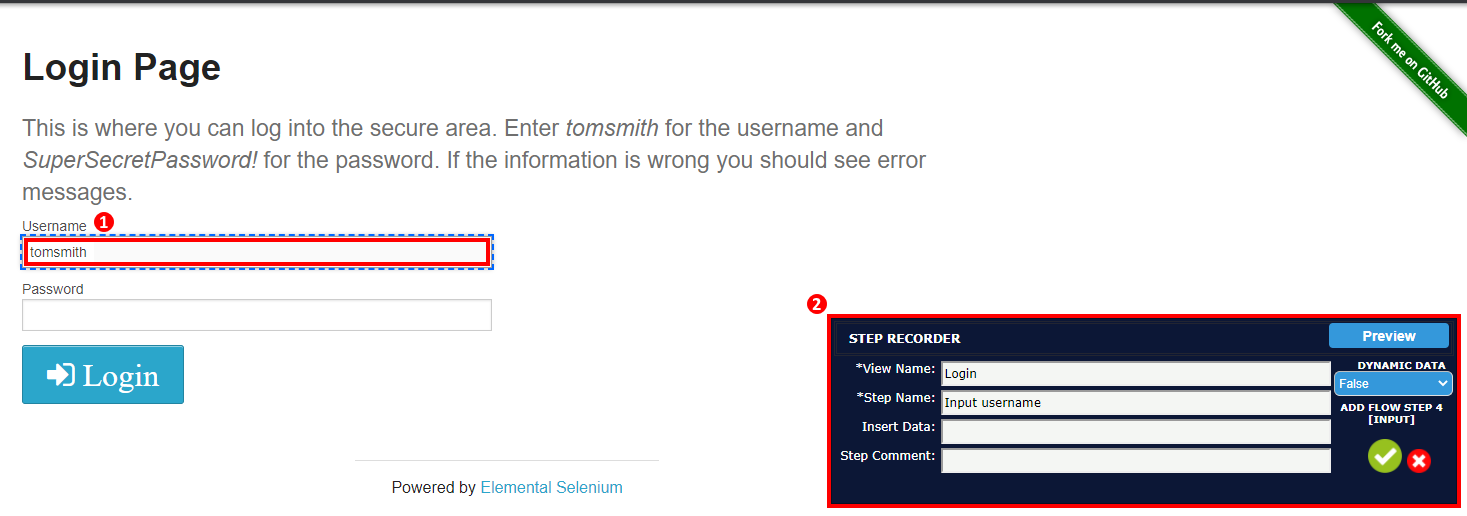
Click on “Username” field and input username. The username can be found on the login page description.
Provide and confirm the step information. “Insert data” information is automatically fetched from the edited input field on the webpage.
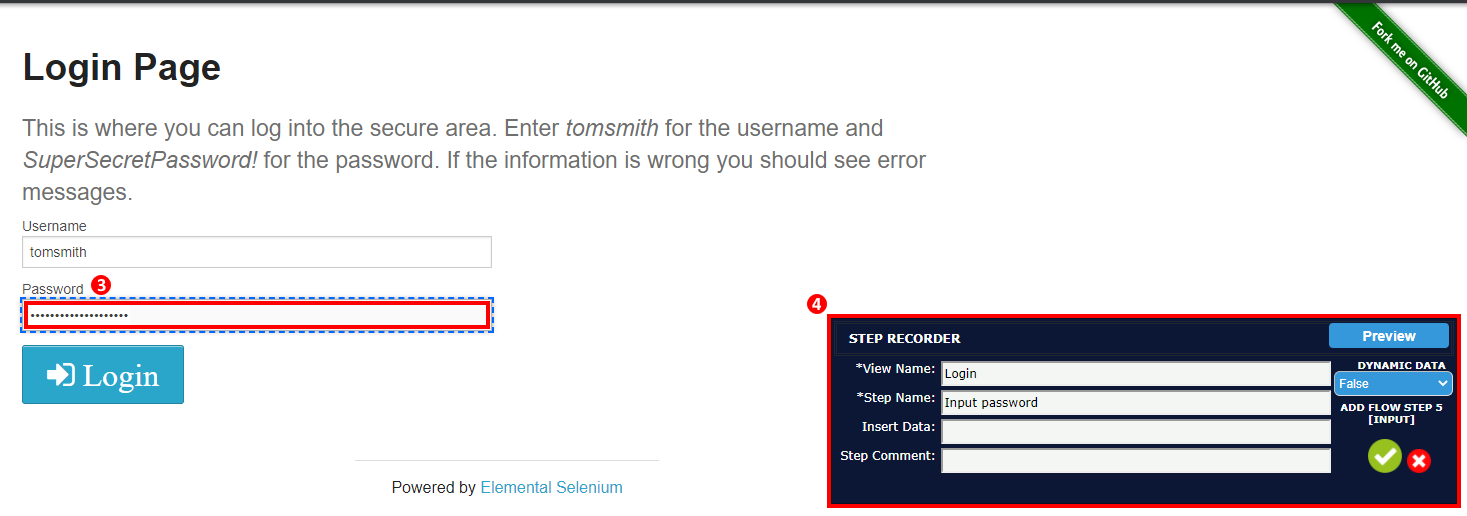
Click on “Password” field and input password. The password can be found on the login page description.
Provide and confirm the step information.
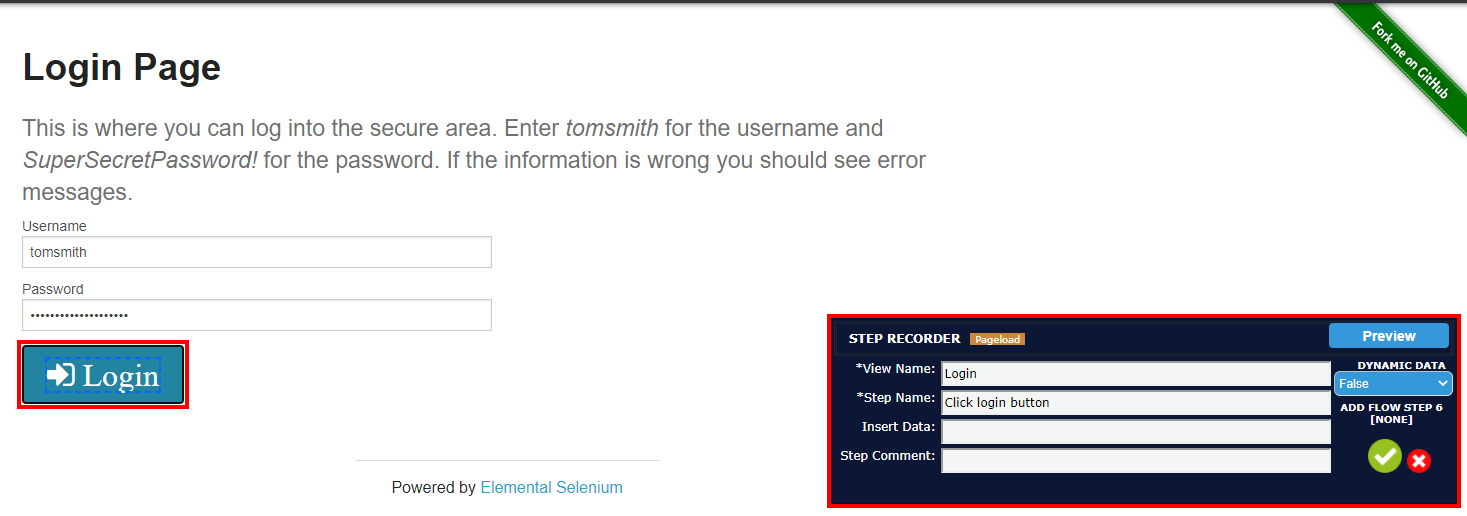
Click “Login” button. Provide and confirm the step information.
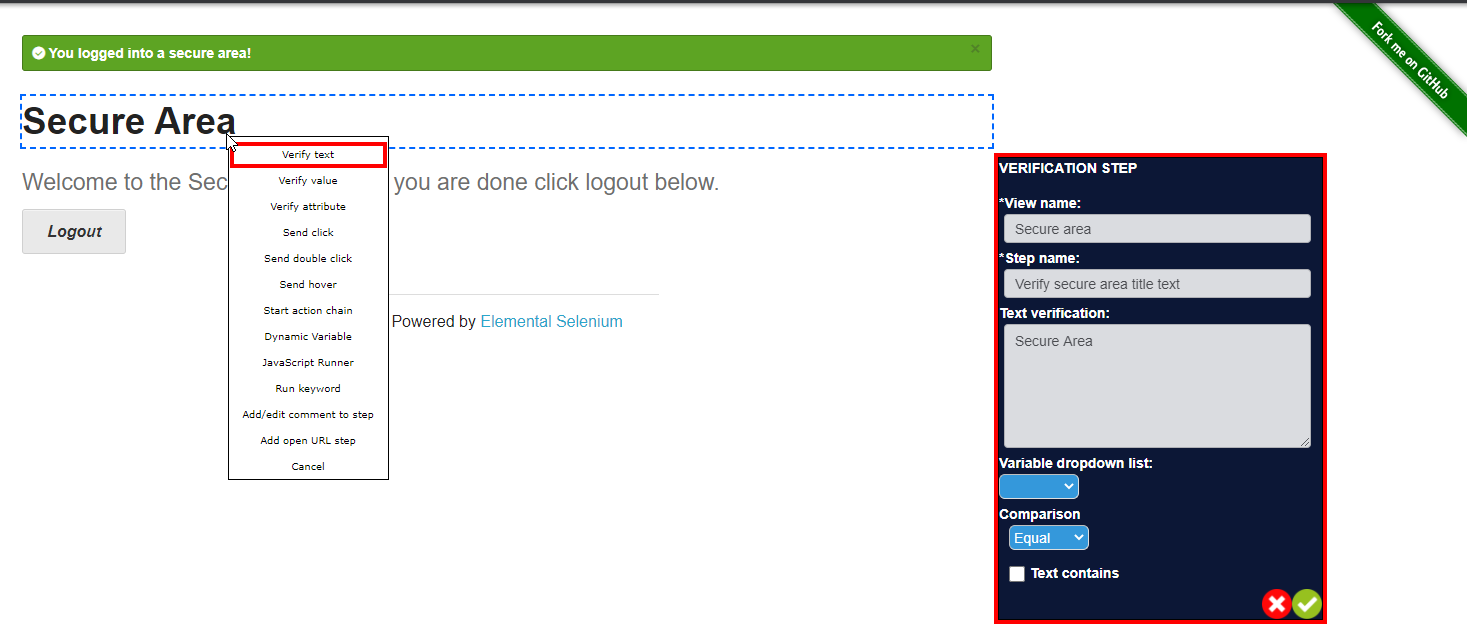
Verify successful login and logout:
Verify secure area title text.
Click “Logout” button. Provide and confirm the step information.
Verify login page title text.
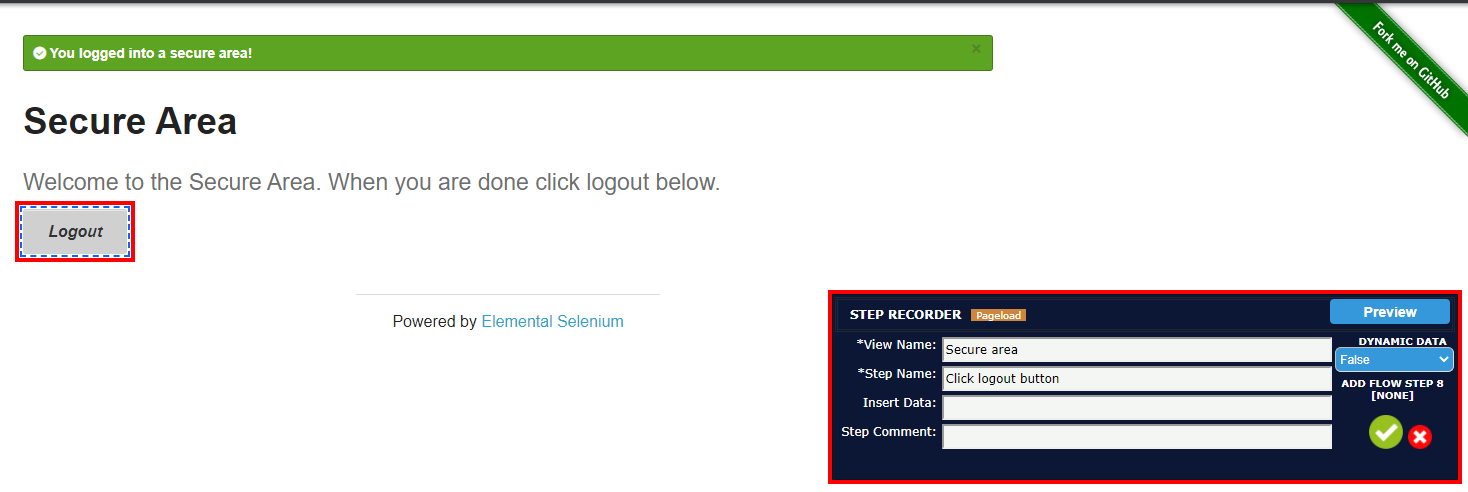
Open QAutoFlow window and click “Stop design” button.
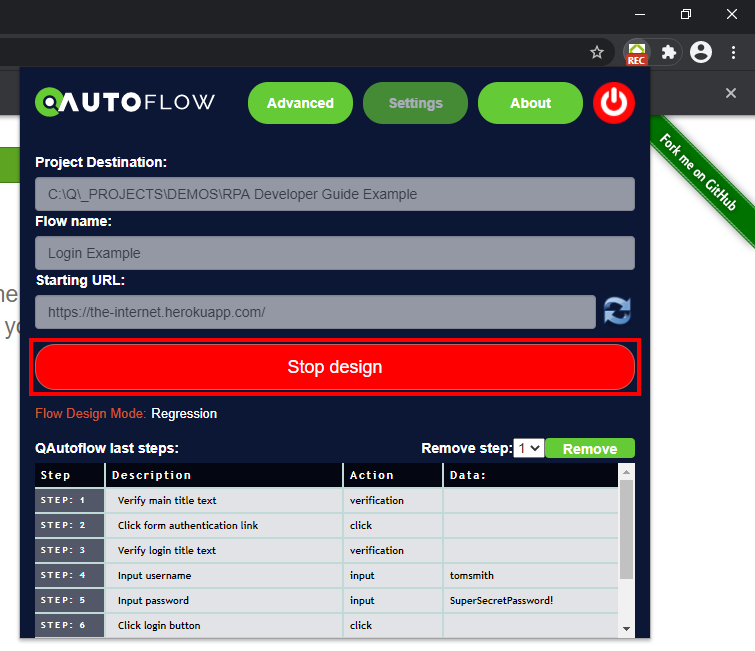
2.2.1 Transform RPA process to Robot script
Transforming RPA process to Robot script can be done in QAutoFlow or in QAutoRobot VSCode extension.
NOTE: A transform license from QAutomate is required in order to transform RPA processes!
Transforming with QAutoFlow:
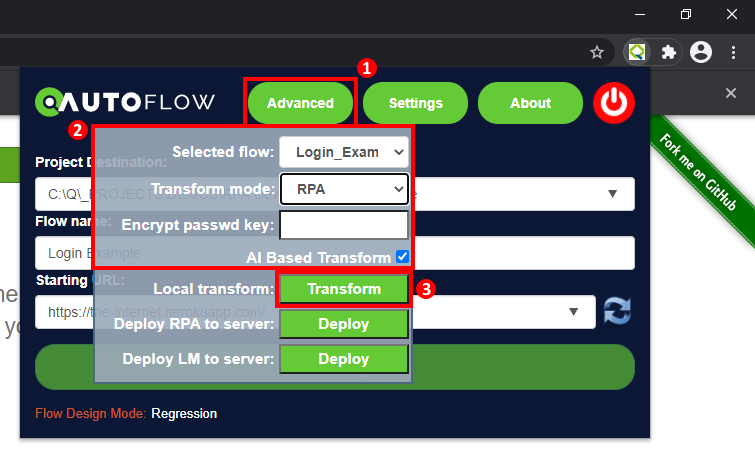
Open QAutoFlow window and “Advanced” options.
Select flow and set options for the transformation. Transform mode has to be set to “RPA” to transform an RPA process to Robot script.
Click “Transform” button.
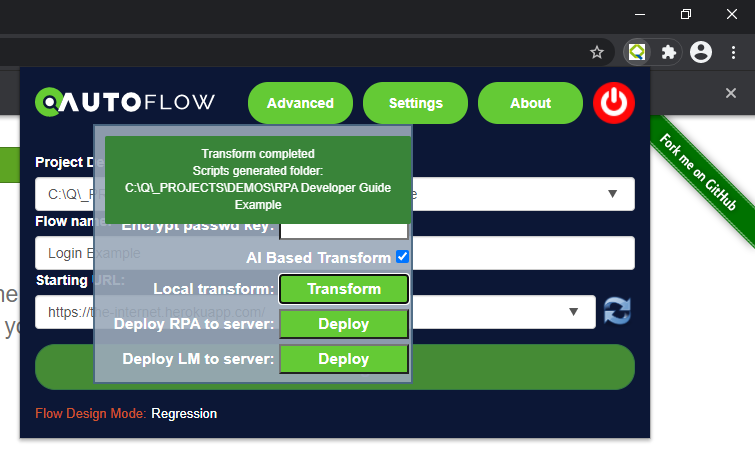
Wait for transform to complete.
Transforming with VSCode extension:
Open QAutomate page in Visual Studio Code.
Open “Transform” subpage.
Select flow and set options for the transformation. Transform mode has to be set to “RPA” to transform an RPA process to Robot script.
Click “Transform” button.
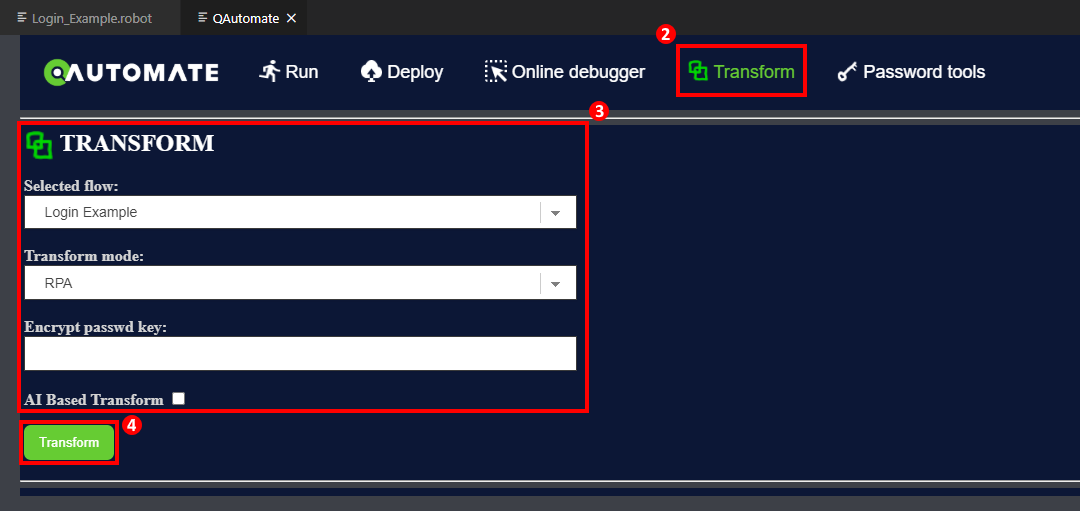
Wait for transform to complete.
NOTE: If “AI Based Transform” was checked, a new Google Chrome window will open where the robot performs the run. After the performance, Transform_Results.html will open on default browser.
2.3 Create RPA process with coding
Start by creating a QAutomate RPA project structure. The project structure can be created in Microsoft Visual Studio Code, with QAutoRobot extension.
Creating project structure with QAutoRobot VSCode extension
Create a new project in Visual Studio Code.
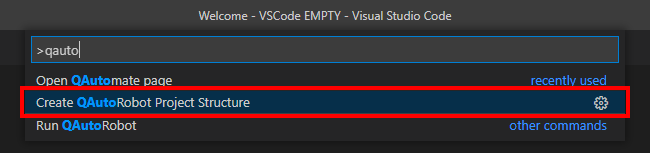
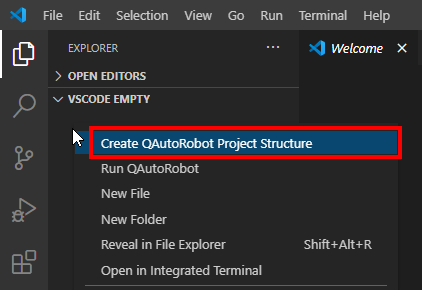
Create a QAutomate RPA project structure by either:
Running the following command in Command Palette:
>Create QAutoRobot Project Structure
OR
Right-clicking on project file tree on the left and choosing the option “Create QAutoRobot Project Structure”.
Create Robot test files
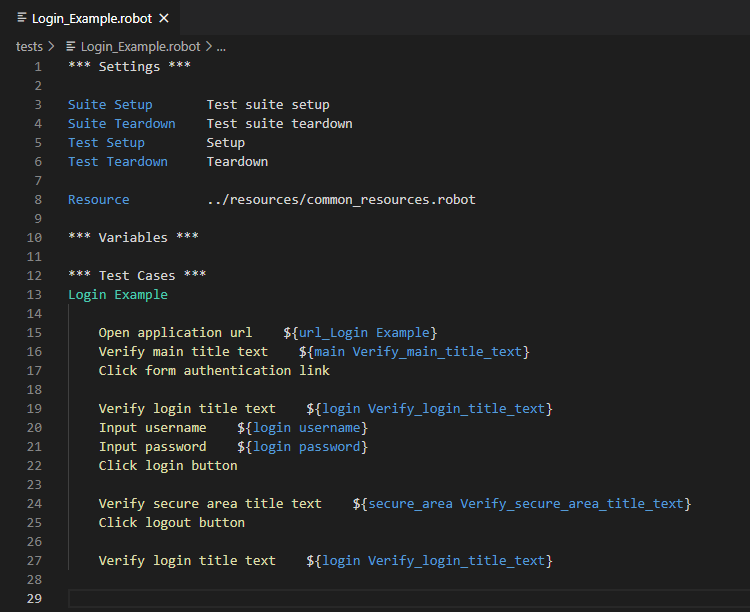
Create a Robot file (
.robot) in the project’stestsfolder.Modify the Robot file:
In
*** Settings ***field, provide references to the test setup and teardown operations.In
*** Settings ***field, provide a reference tocommon_resources.robotfile, located in the project’sresourcesfolder.In
*** Variables ***field, define any test suite variables.In
*** Test Cases ***field, create test process using Robot syntax.Example:
Create resource files (Optional)
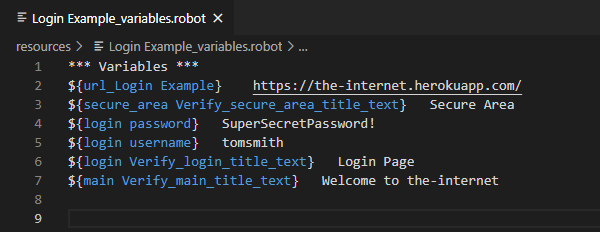
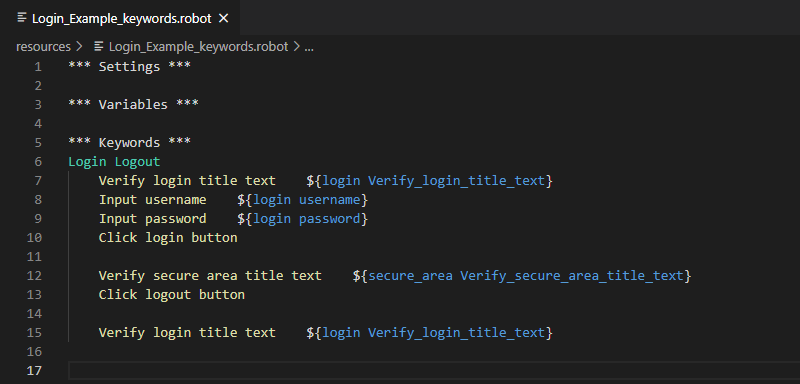
Resource files can be created to contain variables, custom keyword definitions, and modular test sections.
Create a Robot file (
.robot) in the project’sresourcesfolder.Modify the resource file:
In
*** Settings ***field, provide references to any libraries or Robot files of your choice.NOTE: References to resource files are intended to be delivered to Robot test files through
resources/common_resources.robotfile, in order to avoid cross-referencing.
In
*** Variables ***field, define any variables of your choice.In
*** Keywords ***field, define any keywords of your choice.In
resources/common_resources.robotfile, provide a reference to the new resource file.Examples:
Create Python modules (Optional)
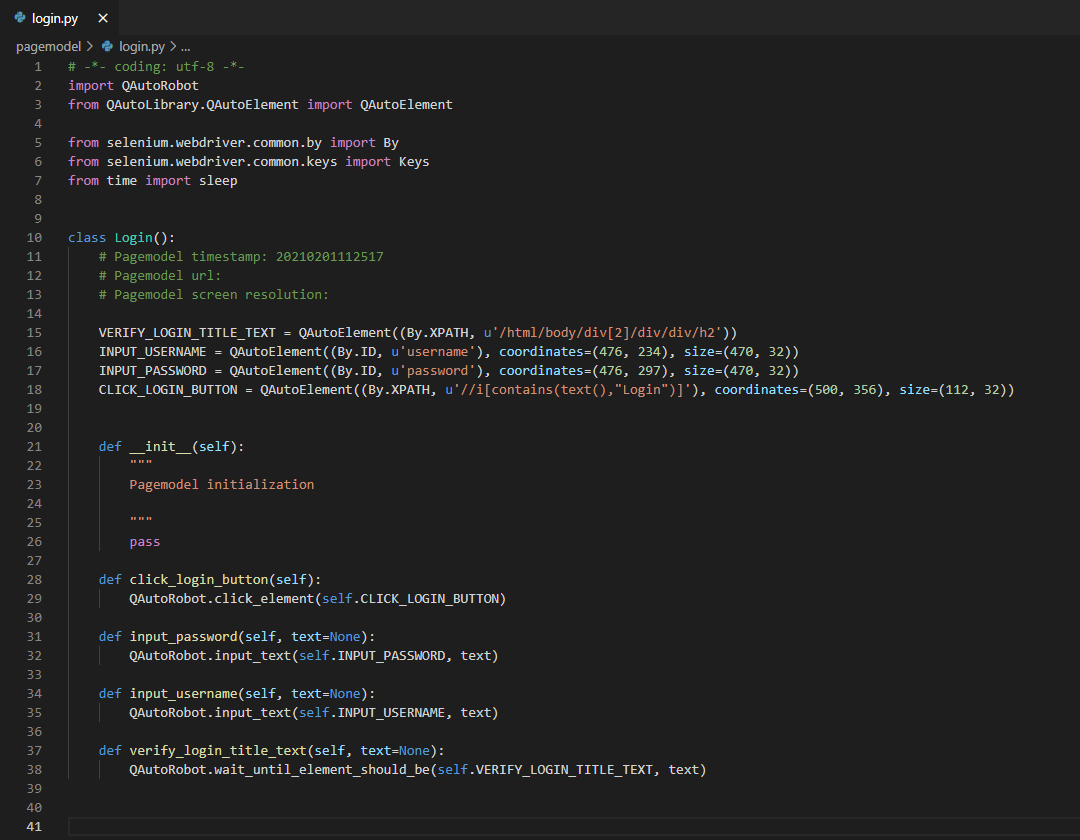
Python modules can be created to define custom functions for Robot tests. The custom functions can be called like keywords in Robot files. Python modules are dynamically imported during the runtime, thus references to the modules are not required.
Create a Python file (
.py) in the project’spagemodelfolder.Create the Python module. If the module contains a class, the class methods can be called like keywords in Robot files. Naming follows the standard Python naming convention. When calling functions in Robot files, replace any underscores (
"_") with spaces (" ") in keywords.
Example:
2.4 Setup and teardown
Setup and teardown operations are defined in resources/setup_and_teardown.robot file.
Setup operations are executed before single test cases.
Teardown operations are executed upon the completion of a single test case.
Test suite setup operations are executed before starting test suite.
Test suite teardown operations are executed upon the completion of test suite.
2.5 Robot run parameters
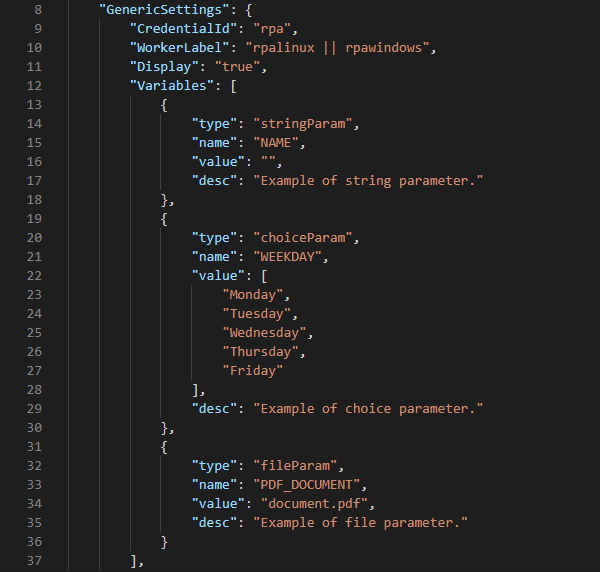
Robot run parameters are defined in QAutoRPA_settings.json file. The parameters are listed in "GenericSettings", in "Variables" array.
"type"- type of the parameter. Valid variable types are:
stringParam- a string variable.
choiceParam- a list of options. Define an array of options to the"value"section. The default value will be the same as the array’s first value.
fileParam- file variable.
"name"- name of the parameter. In Robot files, the variable can be accessed like a normal variable in Robot syntax."value"- default value of the parameter."desc"- description of the parameter.
Examples:
2.6 Run robot locally
Robot can be run with QAutoRobot VSCode extension:
Open QAutomate page in Visual Studio Code.
Open “Run” subpage.
Select which tests to run by choosing test files, test cases and tags. Select browser.
Click “Local run” button.
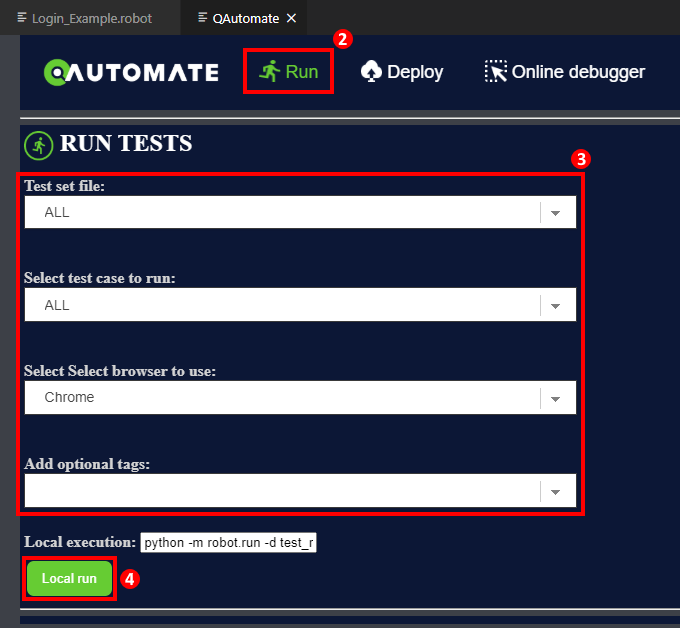
Wait for run to complete.
After the run has completed, the report can be opened by clicking “Open test log” button. Report files are located in the project’s test_reports folder.
2.7 QAutocloud robot setting json
[Work in progres…]
3. RPA script features and logging
3.1 Log data
“Log data” is a function made by QAutomate and it is located in RpaLogger.py file, in QAutolibrary.
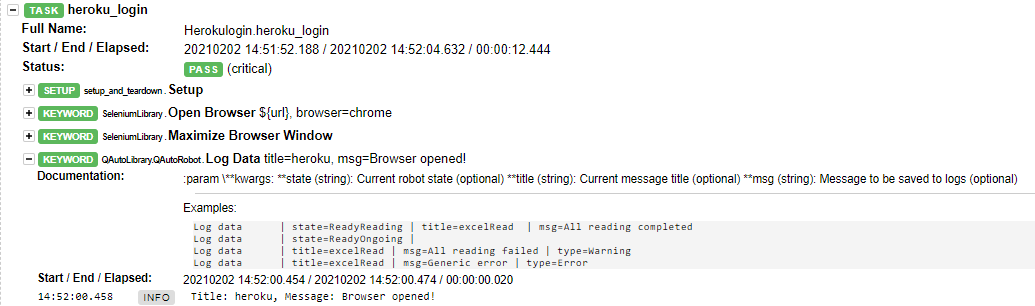
“Log data” keyword can be used to log messages and data to the test reports generated by QAutoRobot. The following arguments can be provided to “Log data” keyword:
title- title of the log entry.state- attribute describing the state of the run.msg- message of the log entry.type- type of the log entry:normal,warningorerror.
Example:
*** Keywords ***
Log Examples
 |  Log Data  |  title=Example  |  msg=Today is ${WEEKDAY}.
 |  Log Data  |  title=Example  |  state=finished  |  msg=Log examples finished.  |  type=normal
After you run your robot, you can check the Log data in the log.html that the robot generates.
3.2 Save data
“Save data” is a function made by QAutomate and it is located in RpaLogger.py file, in QAutolibrary.
“Save data” is used in Robot Framework to save variable(s) value to QAutoCloud server.
Example:
| Save Data | Example_data=${Example_variable}
3.3 Save resources
“Save resources” is a function made by QAutomate and it is located in RpaLogger.py file, in QAutoLibrary.
“Save resources” keyword can be used to save the provided data to database.
Provided arguments are used to define the name of the data field, and the actual data. If argument ‘robotname’ is provided, data is filtered into that robot’s resource.
Example:
| Save Resources | Data_field_1=${Example_list} | Data_field_2=${Example_dictionary}
3.4 Trigger email
Email triggers can be set in QAutoCloud RPA Dashboard, from a deployed robot’s settings.
Feedback email address can be set in QAutoRPA_settings.json file, however, feedback emails have to be enabled from the robot’s settings, in QAutomate RPA Dashboard.
3.5 Customization
[Work in progress…]
Library Requirements
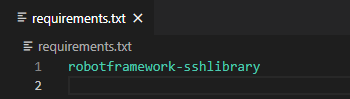
Additional library requirements can be provided in an optional requirements.txt file.
requirements.txt file must be located in the project’s root.
Example:
4. Deploy QAutomate RPA project to QAutoCloud
4.1 Deploy pre-conditions
rpa_deploy.jsonfile inC:\\Users\\<USER>\\qautomate(on Windows) or inhome/<USER>/qautomate(on Unix)VPN connection
4.2 Deploy cloud settings (rpa_deploy.json)
To deploy a robot from QAutoRobot, you need to have correct rpa_deploy.json settings.
rpa_deploy.json file has information about different deploying profiles.
Go to C:\\Users\\<USER>\\qautomate and open rpa_deploy.json file. If you don’t have rpa_deploy.json file, create it.
Base for the rpa_deploy.json file, with an empty profile:
{
    "profiles": [

        {

        "online_url": "",

        "username": "",

        "password": "",

        "profile_name": "default"

        }

    ]
}
4.3 Deploying with QAutoRobot VScode extension
Before deploying, make sure that these are named the same:
In
testsdirectory, “main” robot file nameIn
QAutoRPA_settings.jsonfile, “RobotName”
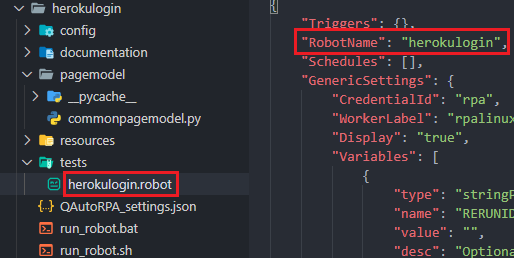
Open Deploy page in QAutoRobot. Select the RPA server where you want to deploy your robot and click Deploy QAutoCloud. Make sure you have VPN connection on.
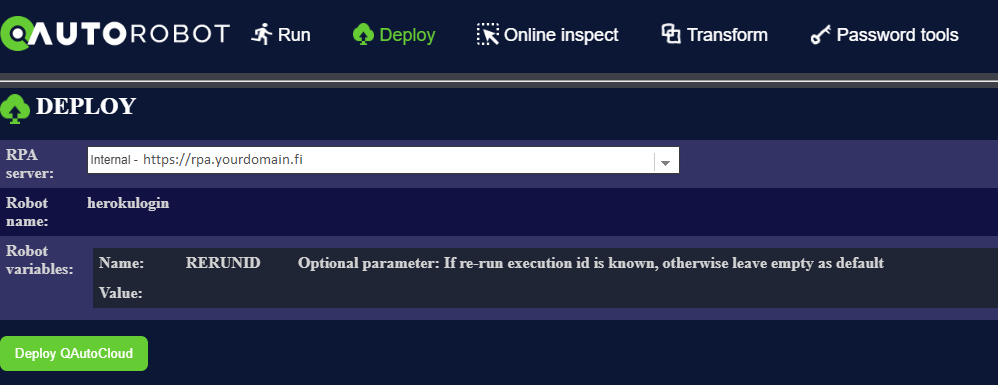

Log in to your Dashboard (https://rpa.yourdomain.fi/login, where “yourdomain” is replaced with the domain name)
The deployed robot should be available on the Dashboard.

4.4 Deploy manually with zip file
Before deploying, make sure that these are named the same:
In
testsdirectory, “main” robot file nameIn
QAutoRPA_settings.jsonfile, “RobotName”
Make a zip from all the files and name it same as the “main” robot file.
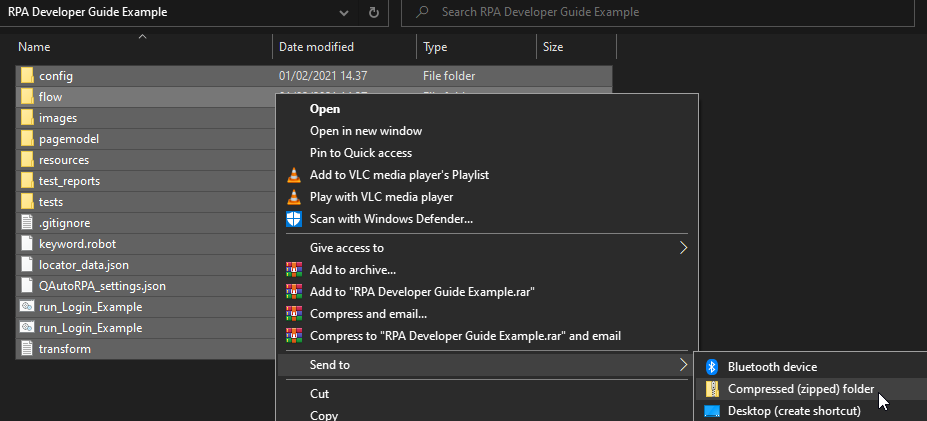
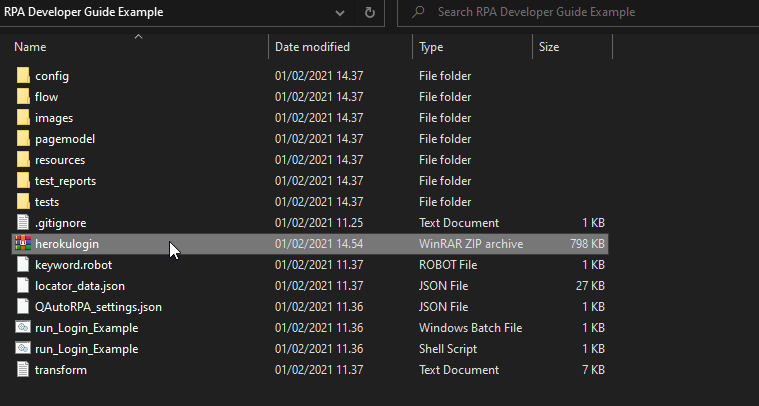
Log in to your Dashboard (https://rpa.yourdomain.fi/login, where “yourdomain” is replaced with the domain name)
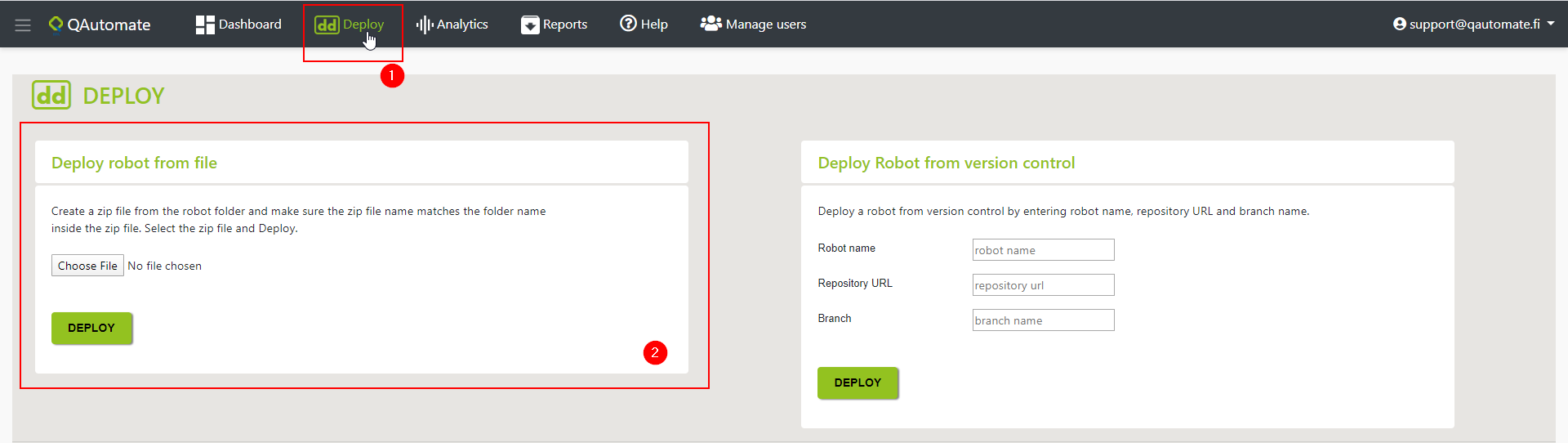
Click “Deploy” from upper-left.
Click “Choose File” and select your Zip file.
Click “Deploy”.
4.5 Running robot in cloud
Log in to your Dashboard (https://rpa.yourdomain.fi/login, where “yourdomain” is replaced with the domain name)
In Dashboard page click the run icon.
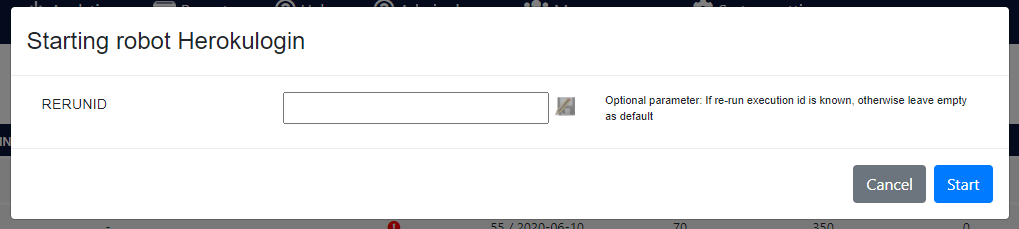
Click start. Wait for the run to be completed.
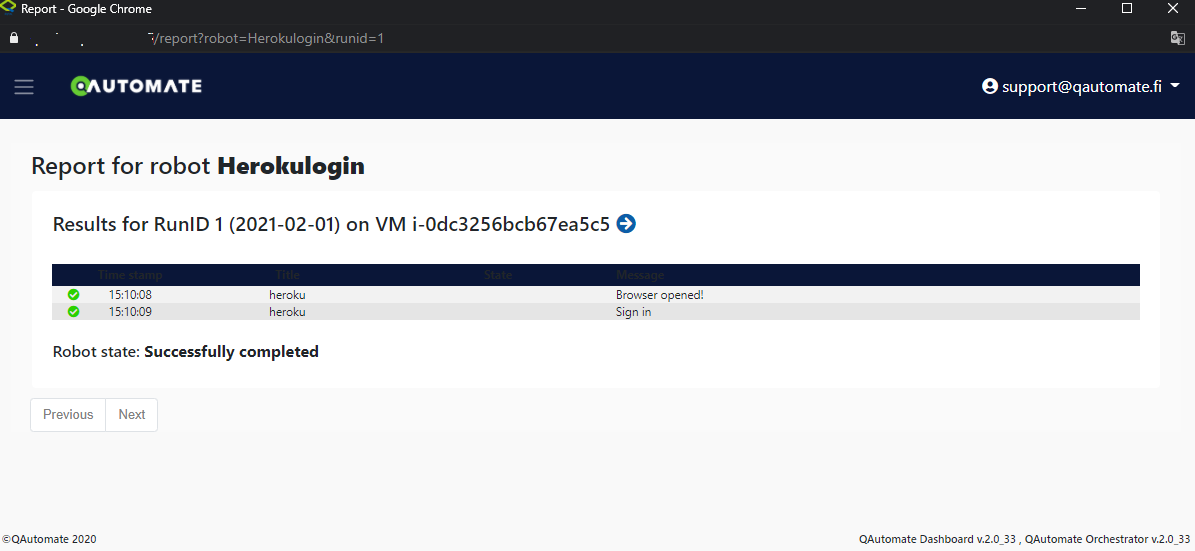
After the run is completed, click report icon to open the log.

5. Deploy other format projects to QAutoCloud
Deploying a robot which is made with Robot Framework only to the QAutoCloud.
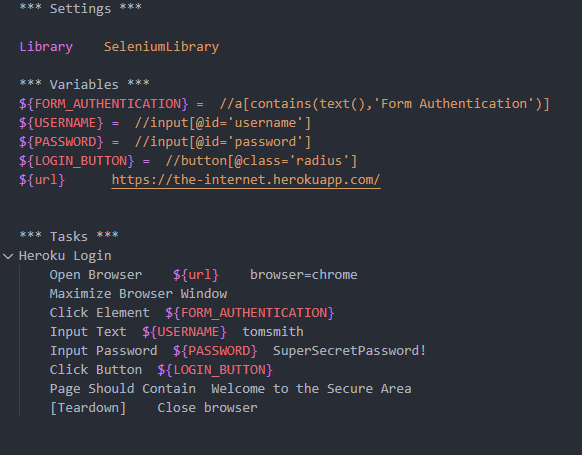
With Visual Studio Code, follow from 5.1 With Visual Studio Code, and with other editors from 5.2 With other editors.
5.1 With Visual Studio Code
5.1.1 QAutoRobot extension
Ask your contact person about the extension download and follow the installation instructions there.
5.1.2 Correct project structure
Open the project folder in VSCode. Open Command Palette (CTRL+SHIFT+P) and type Create QAutoRobot project structure and click it.

New folders are added to the project folder. Copy the original robot file to the “tests” folder and delete the generated .robot file from there.
Change “RobotName” in QAutoRPA_settings.json
5.1.3 Robot modifications
Open the robot file. Copy these modifications to there:
*** Settings ***
Suite Setup         Test suite setup
Suite Teardown      Test suite teardown
Test Setup          Setup
Test Teardown       Teardown

Resource    ../resources/common_resources.robot
The robot file should now look like this:
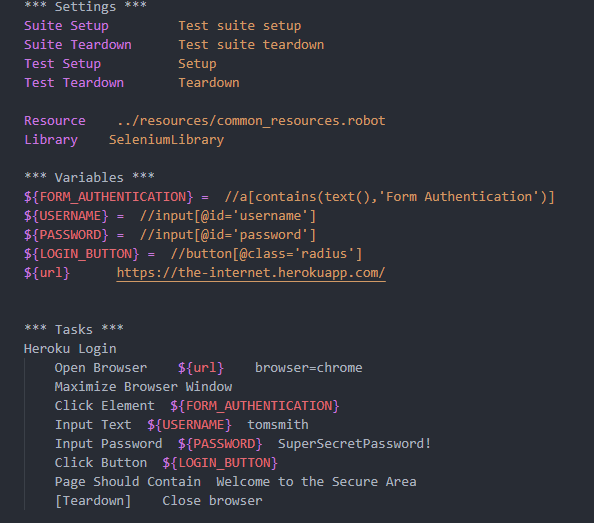
To deploy the robot, follow the guide from section 4. Deploy QAutomate RPA project to QAutoCloud.
5.2 With other editors
5.2.1 Correct project structure
Add five new folders to the project folder.
Add a folder “config”
Add a folder “documentation”
Add a
README.mdfile to the documentation folder.README.mdcan be left empty
Add a folder “pagemodel”
Add a folder “resources”
Add
common_resources.robotandsetup_and_teardown.robotfiles to the resources folder
Add a folder “tests”
Move the original robot file here
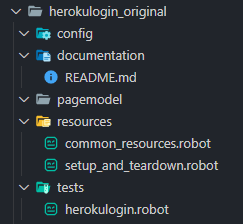
Project folder should look like this now:
Add QAutoRPA_settings.json file to the project folder and copy these modifications to there:
{
    "Triggers": {},
    "RobotName": "",
    "Schedules": [],
    "GenericSettings": {
        "CredentialId": "rpa",
        "WorkerLabel": "rpalinux || rpawindows",
        "Display": "true",
        "Variables": [
            {
                "type": "stringParam",
                "name": "RERUNID",
                "value": "",
                "desc": "Optional parameter: If re-run execution id is known, otherwise leave empty as default"
            }
        ],
        "FeedbackEmail": {
            "addresses": ""
        },
        "FeedbackSlack": {
            "slack_channel": ""
        },
        "GrafanaRecreate": "false",
        "CollectData": []
    }
}
Change “RobotName” in QAUTORPA_settings.json
5.2.2 Modifications to robot files
Open the original robot file and copy these settings to there:
*** Settings ***
Suite Setup         Test suite setup
Suite Teardown      Test suite teardown
Test Setup          Setup
Test Teardown       Teardown

Resource    ../resources/common_resources.robot
The robot file should now look like this:
Open common_resources.robot file in the resources folder and copy these lines to there:
*** Settings ***

Library    QAutoLibrary.QAutoRobot

Resource    ../resources/setup_and_teardown.robot

*** Variables ***

*** Keywords ***
Open setup_and_teardown.robot in the resource folder and copy these lines to there:
*** Settings ***

Resource    ../resources/common_resources.robot

*** Variables ***
${DEBUGRUN}=  ${FALSE}
${SPEED}=  1
${MONGODB}=  localhost:27017/
${RUNID}=  1
${STATE}=  Default
${VMNAME}=  Default
${ROBOTNAME}=  ${SUITE NAME}


*** Keywords ***

Setup
    Log    setup
    # Start recording    ${ROBOT NAME}

Teardown
    ${failure_image_path}=    Get failure image path    ${TEST NAME}
    Run Keyword If Test Failed    Take full screenshot    ${failure_image_path}
    Run Keyword If Test Failed    Find last searched element details
    Run Keyword If Test Failed    Log    Generic script error

    # Stop recording

    ${documentation}=    Generate failure documentation    ${TEST_DOCUMENTATION}    ${TEST NAME}
    Run Keyword If Test Failed    Set test documentation    ${documentation}

Test suite setup
    ${DefaultBrowser}=  Run Keyword if  '${DEBUGRUN}'!='${TRUE}'  Open browser    ${BROWSER}
    Set suite variable  ${DefaultBrowser}  ${DefaultBrowser}
    Set Speed  ${SPEED}
    Rpa logger init  business_report.json    ${ROBOTNAME}    ${RUNID}   ${MONGODB}   ${VMNAME}
    Json logger init  statistics_report.json    ${ROBOTNAME}

Test suite teardown
    Pass Execution    No need for teardown
    #Run Keyword if  '${DEBUGRUN}'!='${TRUE}'
    Close all browsers
To deploy the robot, follow the guide from section 4. Deploy QAutomate RPA project to QAutoCloud.